Article: Smart Import Object Sample Use-cases and functionalities.
This article takes a deep dive into the Smart Import Object facility in Board, exploring how and when to use it in place of Data Readers, the different modes of import available, and practical scenarios where formula-based imports can unlock real value. While existing resources already cover the fundamentals, this piece is designed to go further—highlighting additional areas and advanced applications. The aim is to help readers configure Smart Import not just for reading Cube or Entity values, but to fully leverage its solution-driven capabilities in tackling complex business cases.
- Existing Useful Articles as a pre-read[MS1] [AS2] :
Basic Manual Smart import Object
Community Articles:
New training for the Smart Import Objects tool - Board Community
How to hide/ignore columns of an Excel data source when using the Smart Import Object - Board Community
Above may not be the full list for this topic as more articles can be found as new articles are updated / based User search.
- When to use: Smart Import Vs Data Reader
- End User in play mode can populate entity members / Cube with excel like interface through file upload / copy paste on screen from their local machine directory as source.
- Users can see the errors on screen on failed upload.
Not Useful for:
- Admin activities for mass uploads / Scheduled batch uploads
- Procedure based data reading
- Migration activities / multiple period and cubes massive updates / Application-level updates or changes needing huge database updates.
Smart Import modes of data upload
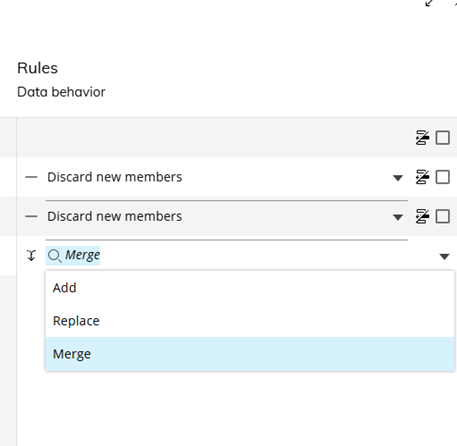
A frequent question about Smart Import is: “What happens if I upload the same file more than once?” The answer depends on the configuration mode—Add, Replace, or Merge—and each handles repeated imports differently. Using an inventory stock cube with dimensions Month and Category, the table below shows how the data behaves under each mode when the same file is imported multiple times.
Data Behaviour in multiple upload for same entity members[MS3] [AS4] :
Consider a cube for stock, with dimensions month and category, and user uploads the smart import twice as below.
The Cube data behaviour for Add, Replace and Merge are explained in below example:
Upload 1 | | |
|---|
Month | Category | Qty |
202501 | 1 | 100 |
202501 | 2 | 100 |
202501 | 3 | 100 |
| | |
Upload 2 | | |
Month | Category | Qty |
202501 | 1 | 200 |
202501 | 3 | 100 |
Resulting Cube Value | | | |
|---|
Data Behaviour | Month | Category | Qty |
Add | 202501 | 1 | 300 |
Add | 202501 | 2 | 100 |
Add | 202501 | 3 | 200 |
Data Behaviour | Month | Category | Qty |
Replace | 202501 | 1 | 200 |
Replace | 202501 | 3 | 100 |
Data Behaviour | Month | Category | Qty |
Merge | 202501 | 1 | 200 |
Merge | 202501 | 2 | 100 |
Merge | 202501 | 3 | 100 |
From above it is clear that “Merge” option will be more favored in configuring the smart import.
Add option will be used when the users are aware that each upload increments the existing values (they can then adjust by uploading negative values to adjust)
Replace mode is to be carefully used as any member entity not in the upload data is zeroed if it already holds some value. Replace mode recommended to be used with active selections / discard outside selection mode on so that any entity members that are outside the active selections are not zeroed down.
To note however even with discard outside selection mode on, any absent combination in the new upload will zero down existing value present on that combination.
Example in above month selection could be 202501 and category selected could be all 1,2,3. In that case the second upload will nullify / zero out the value existing on combination 202501 as month and 2 as category.
- Use case for advanced Auto Incrementation / Serialized numbering (Using procedure trigger for Data reader from Smart Import):
When an entity is made auto incremental, each new upload increments the number from the last upload. The database entity member list is checked in the backend to have new smart import upload place the incrementation to next number.
Example creating new Employee ID, the employee ID is to be system generated as auto incremented but also to include the department.
This can be achieved by Smart import of a stage cube, Stage cube with dimensions – Department and Auto Incrementing Entity and Name, Cube fixed value = 1
And setting a trigger on smart import object that on the save action will extract the cube and data read the Emp ID entity concatenating Increment ID and Department ID for the required name as a mapping cube.
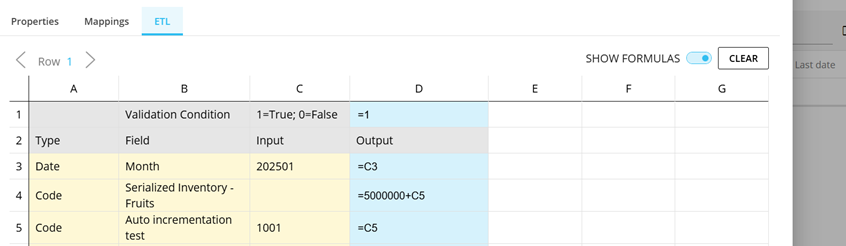
The Auto incrementation can also be triggered for backend data read processing where the serialization needs to be from a higher “Start” number example if the series starts with “5000000” and the records uploaded are first 100, the formula in the data read trigger procedure can be 5000000 + the column for value of auto incrementation in the ETL function of Data reader.
To note, the auto incremental entity used in smart import to also have equal code width as the final series entity so that the above addition updates the series at higher numbers too (for example when it reaches 5999999, to increment to start with 6000000[MS5] [AS6] )
The setup in ETL will look as below:
And result as:
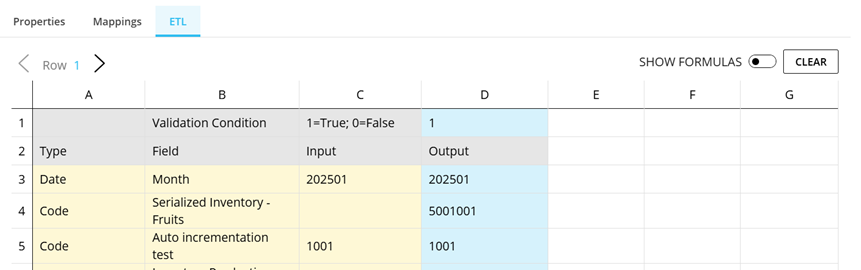
This is to address the limitation of Smart Import that only existing column header name of the excel like layout in play mode of the smart import object can be referenced in the [@....] formula and at the same time the auto incremental entity cannot reference any such play mode column header, it needs to be mapped as fixed / formula in the configuration.
- Multi step calculations: Except auto incrementation To overcome smart import limitation of being able to reference only frontend column headers in formula i.e. [@Column Header …], Users can handle multi step calculations using combination of frontend column excel like formulas + backend mapping configuration.
Consider below case as example:
We need to calculate Net Amount with slab discount:
Step 1: Calculate Basic Amount
- Qty × Rate = Amount
- e.g., 15 units × 120 = 1800
Step 2: Apply Slab Discount
- If Amount > 1500, discount = 10% of Amount
- Net Amount = Amount – Discount
- e.g., 1800 – 180 = 1620
We can add the Basic pre Discount Amount in the front end of the smart import (Users will upload Qty and Rate in this example)
In design mode, the amount column will be added with formula as below to simplify the steps:
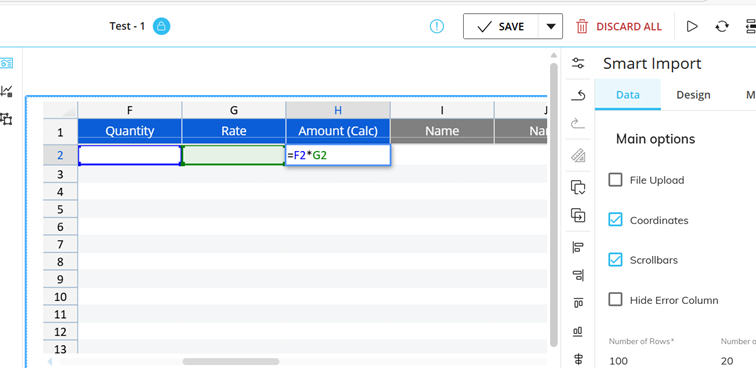
In backend mapping configuration of the smart import, the cube can be mapped to formula as:

=if([@Amount (Calc)]>1500,[@Amount (Calc)]*90%,[@Amount (Calc)])
- Conditional value based on other columns value (Dependent Dynamic value)
There are many uses for using formula based on another column reference.
Example default value for blanks example if Department is not provided, the default value to take is “Operations” (Ensure that department entity has the member “Operations”
While populating the dimension Department for the cube, and if the play mode column header is “Dept.”, below formula can be used:
if([@Dept .]="","Operations",[@ Dept .])
Above is used to populate default entity member
The same approach can be used to populate cube values and dependent calculated cube values from the formulas.
Example if column headers populating cubes are “Qty” and “Amount”, then the rate cube can be derived using formula
=([@Amount .]/[@Rate ])
- Importing non Board format Date can also be achieved in Smart Import configuration.
This is especially useful when Users need to upload files downloaded from their ERP or other systems:
Example if we need to populate cube at month level with data at date level, as in below samples where each row is for 02nd January 2025 in different date formats, the formulas to achieve board month identifier format is as below:
Incoming data (Column Header "Date") | Date Format | Required Board Format (result of Formula) | Formula |
|---|
01-02-2025 | MM-DD-YYYY | 202501 | =RIGHT([@Date ],4)&LEFT([@Date ],2) |
02-01-2025 | DD-MM-YYYY | 202501 | =RIGHT([@Date ],4)&MID([@Date ],4,2) |
02/01/2025 | DD/MM/YYYY | 202501 | =RIGHT([@Date ],4)&MID([@Date ],4,2) |
01/02/2025 | MM/DD/YYYY | 202501 | =RIGHT([@Date ],4)&LEFT([@Date ],2) |
- Use Cases for Smart Import Validations:
The smart import Validations are useful tool to further guide and control incoming data with enhanced error messages, the validation option is found on the right panel:
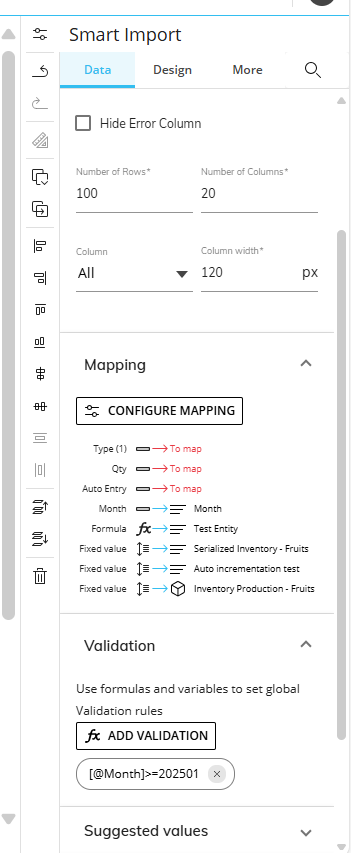
They can be used to validate cube value / entity value. The reference follows same syntax [@Column header ]
For example for controlling the month value for allowing only 202501 onwards data, the configuration used is as below:
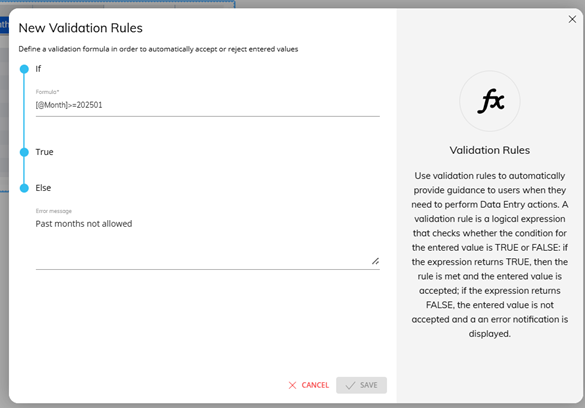
Similarly cube values can also be validated for example negatives not allowed (>0 as True) else user message : “Negative Values not allowed”
This tool can also be used with Multiple validations running parallelly, but to note that the validation refers to only the column headers from the play mode. So any dimension / cube populated other than the column header reference in the smart import configuration (like mapped as fixed or formula) cannot be used in validation the [@....] can only be a reference to the column header of the play mode format of the smart import.
- Suggested Values
Suggested Values can be used for popping up a list of drop down to select the values from, this can be used for both cubes and entities.
To note, if a parent hierarchy is added in suggested value and the child entity is mismatched in the smart import, the relationship will be overwritten as per the smart import. Also adding parent as a preceding column will not limit dynamically the suggested values of the child entity column[MS7] [AS8] .
Smart Import is not just a convenience feature; it’s a design choice that can fundamentally change how you manage data in Board. By learning when to use it instead of Data Readers, mastering the behaviors of Add, Replace, and Merge, and applying advanced formulas with validation, you’ve gained the ability to transform Smart Import into a solution engine rather than a simple input tool.
The aim of this article was to show that Smart Import is not only for reading Cube or Entity values as is, but also a tool that can support more complex business cases.
As a next step, try applying these concepts in your own models and see the difference. And if you’ve discovered unique ways to use Smart Import, share them in the comments — your ideas could help others explore new possibilities.
[MS1]I like the suggested articles to read, but would you be able to put together an introduction paragraph as well to give an idea of what the article will be about? You could even mention why you wrote it or what this will accomplish.
[AS2]Updated
[MS3]Good points but can you put them together in connected sentences for create a more flowing paragraph? Right now they’re just a little too bulleted.
[AS4]Updated as above
[MS5]Are there any images we can use to break up some of this text? Otherwise this is good!
[AS6]Added, thanks
[MS7]Like the beginning of the article, we’ll need some type of conclusion to wrap it up. Perhaps what the user should have accomplished with these tips, what they should do next, etc. You could also ask some type of question to prompt discussion in the comments below.
[AS8]Updated, thankyou